
Chrome extension
Grey out games
you own on Steam.
Checks game tiles on Fanatical, Humble Bundle and Green Man Gaming against your synced Steam library.
Chrome Web Store
A link to the listing will be added here.
Ownership example
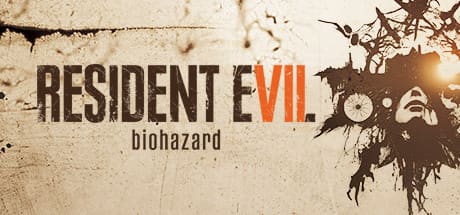 Game owned
Resident Evil 7 biohazard
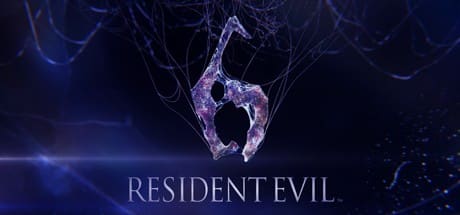 Base game ownedDLC owned 1/4
Resident Evil 6 Complete
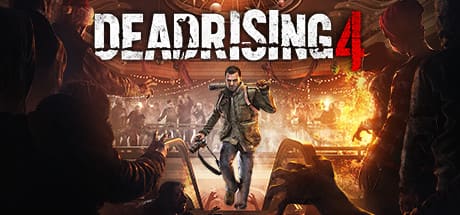
Dead Rising 4
100% accuracy isn’t guaranteed.
Steam package differences, title variations, regional differences and edition contents can cause missed or incorrect matches. Check the game and included DLC before buying.
Supported stores
- Fanatical
- Humble Bundle
- Green Man Gaming
How it works
Connect Steam
Click Sign in via Steam in the extension. After you sign in on Steam’s page, the extension syncs your library.
Keep your library up to date
Click Sync Steam library after purchases, refunds or key activations.
Browse bundles
Fully owned tiles are greyed out. Editions with a confirmed base game are dimmed less and keep their colour. Partially owned packs stay unchanged unless all their base games are confirmed owned.
Editions and DLC Badges distinguish full editions from base-game ownership and show how many known DLCs you own. The DLC count excludes the base game. Hover over a badge for details about the included items.
Updates and syncing Use Sync Steam library to refresh which games you own. Once a library is saved, the extension also checks daily for title corrections and edition contents from the public catalogue. These help match store listings to Steam games and their DLC.
FAQ
Which stores are supported?
Fanatical, Humble Bundle and Green Man Gaming.
Does my Steam library update automatically?
Your library syncs when you first connect Steam. After that, refresh it manually with Sync Steam library after purchases, refunds or key activations.
Why is a game missing or marked incorrectly?
Steam packages, title variations, regional versions and edition contents can differ. A recent purchase may also be missing from your last sync. Sync again, then report the incorrect or missing title with its store page and, if known, the correct Steam page.
What does “Base game owned” mean?
You own the base game, but the full edition is not confirmed owned. When the contents are known, a count such as DLC owned 1/4 shows how many extras are confirmed in your synced library. Hover over the badge for item details.
What happens with multipacks and mystery games?
A pack is fully owned only when every required game and extra is confirmed. Packs with all base games owned but unconfirmed extras are marked Base game owned. Packs with unowned games stay unchanged. Mystery games cannot be checked because their contents are not disclosed.
Can I still interact with greyed-out games?
Yes. Links, buttons and game selection remain usable. Hovering or moving keyboard focus into a dimmed tile makes it more visible. In the extension’s settings, you can adjust visibility for fully owned games and base-owned editions, hide badges or turn off marks for a supported store.
Does the extension receive my Steam password or upload my library?
No. You sign in on Steam’s own page. The extension uses your existing Steam session to sync, stores your library locally and does not upload it anywhere. See the privacy policy for the data stored and the requests made.
How do I delete my stored library?
In the extension’s settings, open Your data, choose Log out and delete data and confirm. This deletes all extension data and revokes its Steam access. It does not sign you out of your Steam account.
How do I report a problem or suggest a change?
Use the reports and feedback form.